Support | Thunderbird
Download and install Thunderbird for Windows.
You can do so here: Thunderbird Download
Email Setup
From the gear icon in the lower left > account settings > add account > mail account:
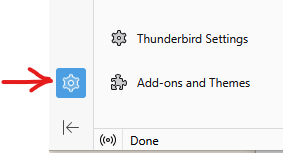
Enter your email address and password, then choose configure manually:
Update the Hostname to mail.afternorth.com for both incoming and outgoing mail servers.
IMAP port 993 and SMTP port 465 with SSL/TLS Connection security.
Optional - Now connect your Contacts and Calendars
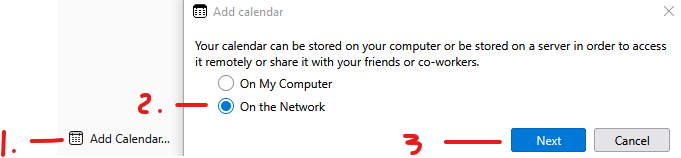
Click on the calendar icon on the left, then at the bottom click add Calendar > on the network > next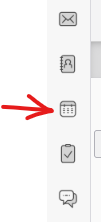
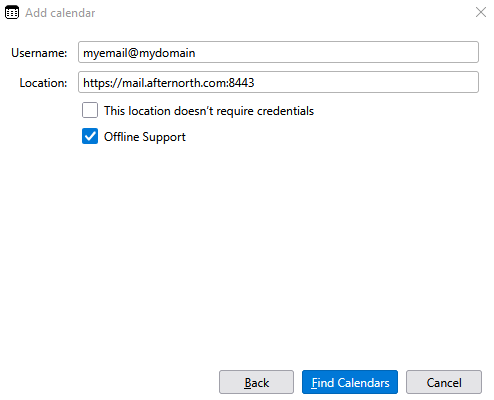
Then enter your username(your email address)
Location: https://mail.afternorth.com:8443
Then click find calendars, then enter your email password.
now select the calendar you want to add and choose subscribe
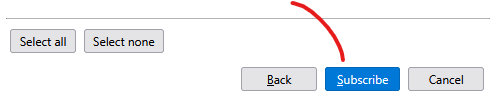
Now to add your address book, select address books from the left and click add address book icon
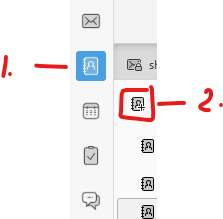
add remote address book (CardDAV)

Enter your email address and URL: https://mail.afternorth.com:8443
Continue, select the address book you want to add then continue again
Thunderbird also supports Chat, so you can connect to our chat servers with your team if you have the service enabled for your account. Here are those instructions:
Click settings, then account settings, lower left:
add acocunt, chat account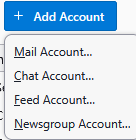
XMPP then next
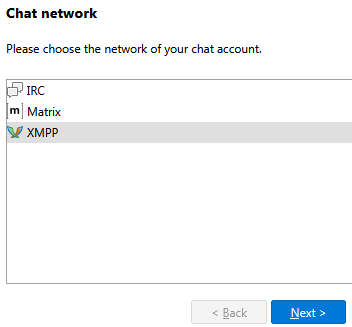
enter your user and domain, for example: myuser@mydomain.tld would be entered like Username: myuser Domain: mydomain.tld and click next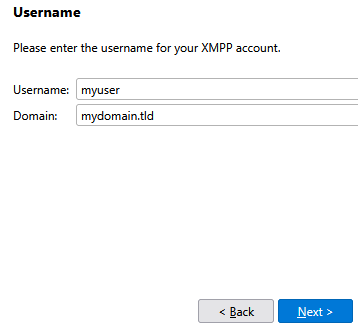
Enter your password, next.
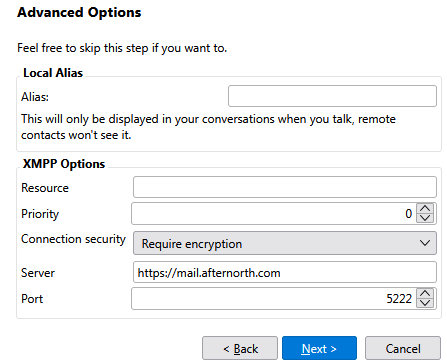
Connection security Require encryption.
Server: https://mail.afternorth.com
Port: 5222
Next, Finish.
Thats it, you're done!